Once mods are installed, maintenance becomes part of normal gameplay. Most problems after a patch come from outdated files, duplicate versions, missing dependencies, or cached data.
Keep Mods Updated
The Sims 4 is updated regularly, and patches can change tuning, Python code, UI resources, or other systems that mods depend on.
- Check mod creators’ update notes after major patches.
- Remove mods explicitly marked as broken until an updated version is available.
- Update dependencies such as Smart Core Script, XML Injector, or other required libraries together with the mods that use them.
- Avoid keeping old and new versions of the same mod in different subfolders.
After a Game Patch
A simple patch-day routine prevents many problems:
- Back up your
SavesandTrayfolders. - Check the status of important script mods and dependencies.
- Update or temporarily remove incompatible mods.
- Delete
localthumbcache.packageafter replacing or removing mods. - Start the game and test before restoring a large number of uncertain files.
Clear Cached Data
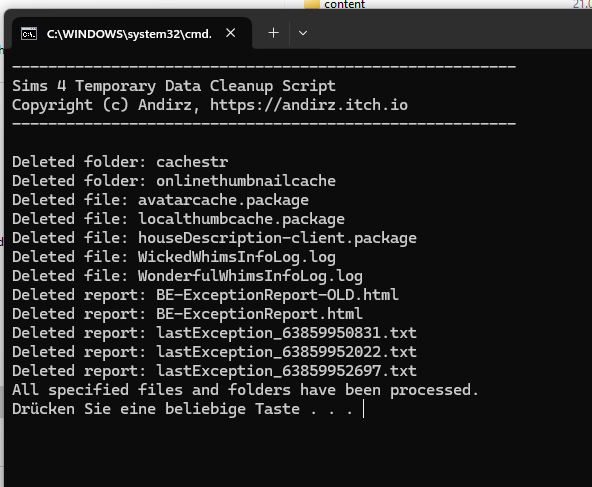
The most important cache file for mod troubleshooting is:
localthumbcache.package
The game recreates it automatically. Deleting it is especially useful after removing, replacing, or updating gameplay mods.
You can also clear the contents of the cache and onlinethumbnails folders when troubleshooting, while keeping the folders themselves.
Check Dependencies
Many mods depend on other packages or scripts. A mod may appear installed correctly and still fail because a required dependency is missing or outdated.
Common examples include:
- Smart Core Script for many Andirz mods;
- XML Injector for mods that use its injection features;
- Lot51 Core Library for mods built on that framework;
- specific DLCs required by the mod’s tuning or assets.
Always check the requirements listed on the mod page.
When Something Breaks
Do not immediately remove everything. First ask what changed: the game version, the mod version, a dependency, or another recently installed mod.
If the cause is unclear, use the 50/50 method instead of testing hundreds of files one by one.
Finding Broken Mods explains the 50/50 method step by step.
If the game reports a Smart Core version mismatch or required version error, see Smart Core Errors.